


Upgrade WordPress images with next-gen formats using Tinify

Large JPEG and PNG files are one of the biggest reasons WordPress pages load slowly. Next-gen formats like WebP and AVIF fix that, cutting file sizes dramatically with no visible quality loss, but compressing and converting them usually means extra plugins or manual work.
Tinify's plugin is a WordPress image compression and optimization tool that handles it automatically with no changes to your workflow. Here's how it works and why it's worth using.
TL;DR
Tinify’s WebP and AVIF cut image size by 30 to 80% with no visible quality loss. Browser support for both is broad enough now that a fallback isn’t the deciding factor it used to be.
WordPress doesn’t convert to these formats on its own. Stacking plugins or exporting images manually tends to create more work.
The Tinify WordPress plugin handles it automatically on upload. Images are compressed and converted to WebP and AVIF right inside the Media Library, no extra steps needed.
The Tinify API extends the same optimization outside WordPress. It’s useful for agencies and larger sites pulling images from more than one source.
Why unoptimized images cost you speed and SEO on WordPress
WordPress has improved a lot on performance. Responsive images, lazy loading, and block-based editing are all built in now. Image formats are the exception. Most WordPress sites still rely on traditional JPEG and PNG files, and that adds up fast:
Large image uploads land straight in the Media Library, often unedited from a camera or design tool
Page builders and themes add their own image weight on top
Performance plugins usually focus on caching, not on the images themselves
Manual image exports don't scale once a site grows
Images often account for the largest share of a page's total size, which slows load times and drags down Core Web Vitals, Google's metrics for measuring page loading speed, interactivity, and visual stability. Closing that gap with next-gen formats has a measurable effect:
Faster page loads, especially on mobile
Improved Core Web Vitals scores
Less image weight across templates and pages
The same visual quality, with no visible loss
Page speed is also a ranking factor for SEO. If you want to see where your own images stand, the free Page Analyzer shows how much load time you could save by optimizing them.
What are next-gen image formats?
Next-gen image formats deliver the same visual quality as JPEG or PNG while using much smaller file sizes. Two matter most for WordPress right now:
WebP: developed by Google, strong compression with broad browser support. A solid upgrade over JPEG and PNG, running about 26% smaller than PNG and 26 to 30% smaller than JPEG.
AVIF: developed by the Alliance for Open Media, it compresses even further than WebP, particularly for high-resolution images. Browser support is growing quickly, which makes it an increasingly practical choice.
Depending on the image, these formats can reduce file size by 30% to 80%. WebP alone typically is around 30% smaller than JPEG or PNG at the same quality. That difference shows up directly in page speed and in how the site feels to visitors on mobile connections.
Why the usual workarounds create more work than they solve
WordPress doesn't convert uploaded images to WebP or AVIF, which is usually what triggers the "serve images in next-gen formats" recommendation in Google PageSpeed Insights.
The common fixes just relocate the effort:
Converting images one by one, with no way to keep up once uploads pick up
Adding a generic caching or performance plugin that never touches image format
Relying on a CDN alone, since they may not have aligned goals, and they bill you based on how much data is sent.
Each still leaves a gap: inconsistent quality, missed images, or a setup nobody wants to maintain. That's why a more direct fix is worth it.
The simple fix: serving next-gen images with the Tinify WordPress plugin
Tinify’s TinyPNG WordPress image optimization plugin takes a more direct approach: it automatically compresses and converts images to WebP and AVIF, without changing how you upload them. Here's how to set it up:
1. Install the plugin. Download the TinyPNG WordPress plugin, or search for it directly from your WordPress dashboard under Plugins > Add New.
2. Configure the settings. Head to Settings > TinyPNG to review your compression preferences.
3. Choose which image sizes to compress. Under Image sizes, pick which of the sizes WordPress generates for each upload should get compressed.
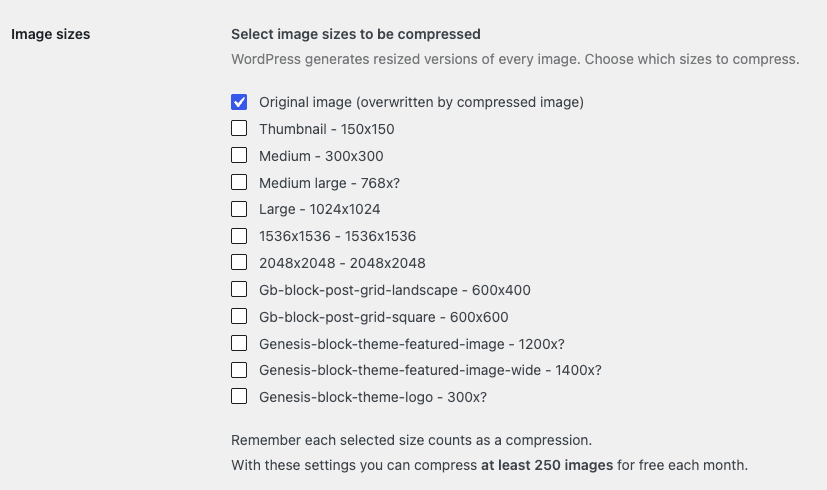
Tinify WordPress plugin image sizes settings.
4. Enable next-gen formats. Under Conversion settings, turn on "Generate optimized image formats" so Tinify converts images to WebP or AVIF automatically, right alongside the original.
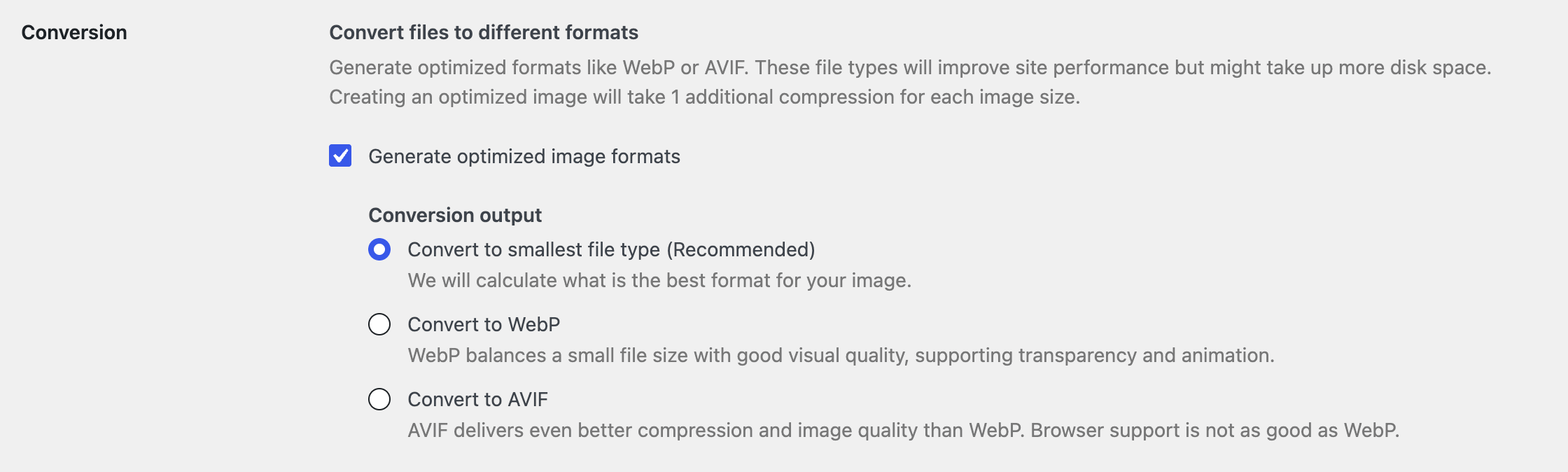
Tinify WordPress plugin Conversion settings.
5. Upload images as usual. From here, every image you upload is automatically compressed and converted to WebP or AVIF, with no extra steps to use WebP images in WordPress.
Tip: You get 500 free image optimization credits per month. Each selected image size costs 1 credit to compress and 1 additional credit to convert.
As a WordPress image optimizer, it compresses PNG, JPEG, WebP, and AVIF images by up to 80% with no visible difference in quality. It works inside the WordPress Media Library and stays compatible with most themes and page builders.
What if you already use next-gen formats?
If some of your images are already WebP or AVIF, for example from a theme's export settings or a previous plugin, Tinify still helps. It compresses existing WebP and AVIF files further, so you get a smaller file size without re-exporting anything.
See it on your own images
Compress and convert an image and check the file size difference for yourself.
Automate it further with the Tinify API
The WordPress plugin covers most sites, but if you’re managing image pipelines outside WordPress, or across several properties at once, the Tinify API is worth a look. It handles the same compression and format conversion as the plugin, but from your own code.
With the API, you can:
Compress and convert images automatically as part of a build or upload pipeline
Convert between AVIF, WebP, JPEG, and PNG on demand
Resize images automatically, with correct gamma scaling and sharpening
Save optimized files directly to Amazon S3 and Google Cloud Storage
Integrate using Ruby, PHP, Node.js, Python, Java, or .NET
… and more
This is useful for agencies standardizing optimization across client sites, or for larger WordPress setups where images come from more than one source, like a headless front end or a separate asset pipeline feeding into WordPress.
Automate your image pipeline
Compress, convert, and resize images with a few lines of code.
How this fits into real WordPress workflows
Tinify doesn’t ask anyone to change how they work day to day:
Bloggers upload featured images and inline visuals without worrying about file size
Marketing teams update landing pages without extra image prep
WooCommerce stores optimize product images automatically as they’re added
Agencies standardize image optimization across every client site they manage
Take a WooCommerce store adding a new product line: someone uploads a batch of high-resolution product photos directly from a camera or a supplier’s file share. Without optimization, those images alone can add several megabytes to the product page. With the plugin active, each upload gets compressed and converted the moment it lands in the Media Library, so the page stays fast without anyone on the team having to think about file formats.
Frequently asked questions
01. Do I need to change how I upload images in WordPress? No. Upload images the same way you always have, whether that's directly into the Media Library, through a page builder, or via WooCommerce. Tinify handles the compression and format conversion in the background.
02. Does WordPress support WebP by default? WordPress can display WebP images, but it doesn't convert your uploads to WebP or AVIF on its own. That's the gap a WordPress WebP plugin like Tinify fills; it converts images automatically as they're uploaded rather than relying on a manual export or a separate tool.
03. Should I use WebP or AVIF? Either works well. AVIF usually compresses a bit more, especially on high-resolution images, while WebP has slightly wider long-standing browser support. If you'd rather not choose, the plugin's "smallest file type" setting compares both and picks whichever is smaller for each image.
04. Does compression reduce image quality? No. Tinify uses a smart compression technique, which removes data your eye can't detect rather than lowering resolution. The file size reductions mentioned above come with no visible drop in quality.
05. Can I use Tinify outside of WordPress too? Yes. The Tinify API offers the same compression and format conversion for developers who want to automate image optimization outside WordPress.
06. How many images can I optimize for free on WordPress? The plugin includes 500 free compressions a month. Each image size you compress costs 1 credit, and converting it to a next-gen format costs an additional credit. Once you use up the 500 free credits, you can upgrade to pay-per-compression pricing or a credit bundle. See Tinify's pricing or read our pricing breakdown for more details.