

How to compress and convert images online with Tinify: A step-by-step guide

Large image files slow down your site, frustrate your customers, and choosing the wrong format hurts your website performance twice: it slows page load times, and over-compressing your images to compensate destroys image quality. The fix is to compress and convert images online in one click, using Tinify's image compressor at tinypng.com. This guide is for anyone looking to compress or convert their images to PNG, JPG, WebP, AVIF, or JPEG XL.
Below, you'll find how to compress images, how to convert them to different formats, and how to combine both steps into a single drag-and-drop.
Compressing vs. converting: What's the difference?
Before diving into the steps, it helps to understand what sets image compression apart from file conversion.
What is image compression?
Compressing an image reduces its file size while keeping the same format. Tinify's smart lossy compression analyzes each image's colors, textures, and patterns, then strips out the data your eye won't miss.
For instance, for PNG files, Tinify applies quantization: reducing 24-bit color down to an 8-bit indexed palette while keeping transparency intact. The image compression works with PNG, JPG, WebP, AVIF, JPEG XL (JXL), APNG, and SVG files.
TIP: If you upload a HEIC photo, the image will be automatically compressed and converted into a JPG.
What is converting an image?
Converting an image changes its format entirely, for example, turning a PNG into a WebP file. This matters because formats aren't interchangeable when it comes to efficiency. WebP typically produces files around 30% smaller than JPEG or PNG at the same visual quality, and AVIF or JPEG XL could go further. Tinify converts images between PNG, JPG, WebP, AVIF, and JPEG XL.
You don't have to choose one or the other. The web tool lets you compress and convert in the same upload, which is exactly what this guide walks through.
How to compress images?
01. Drag and drop your images into the upload box at tinypng.com, or click the box to select files from your device. With our free plan, you can upload up to 20 images at once, up to 5 MB each.
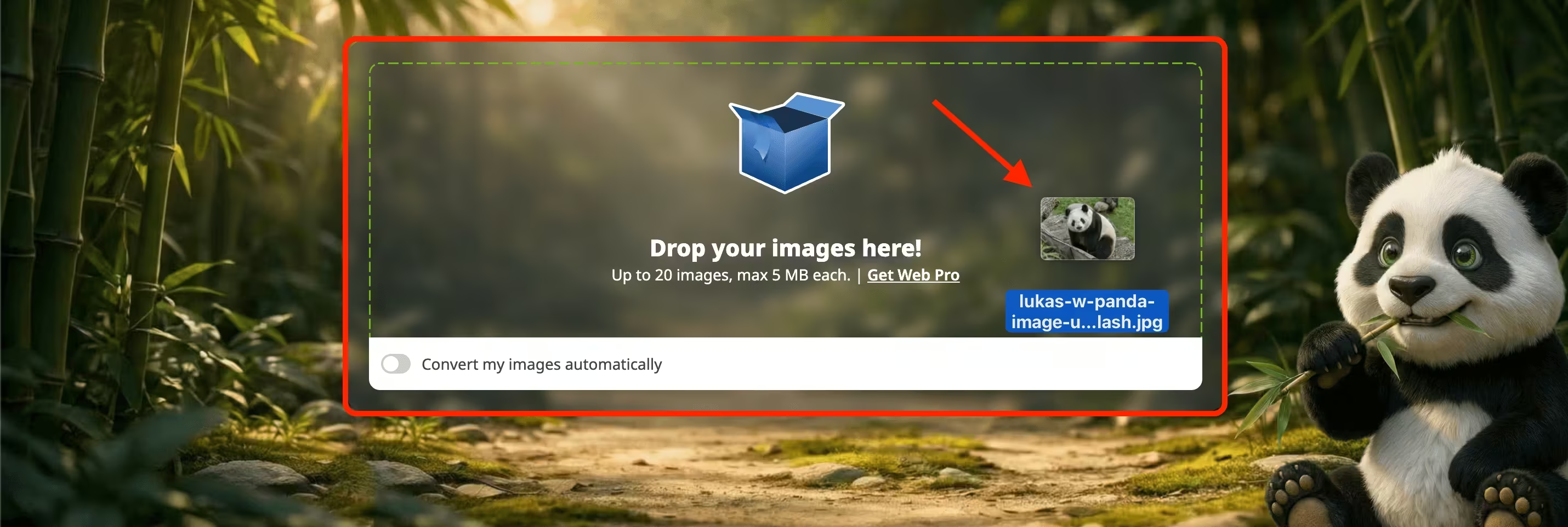
02. Once processing finishes, click the download button next to each compressed image. If you're compressing several images at once, use "Download all images" to grab everything in one go.
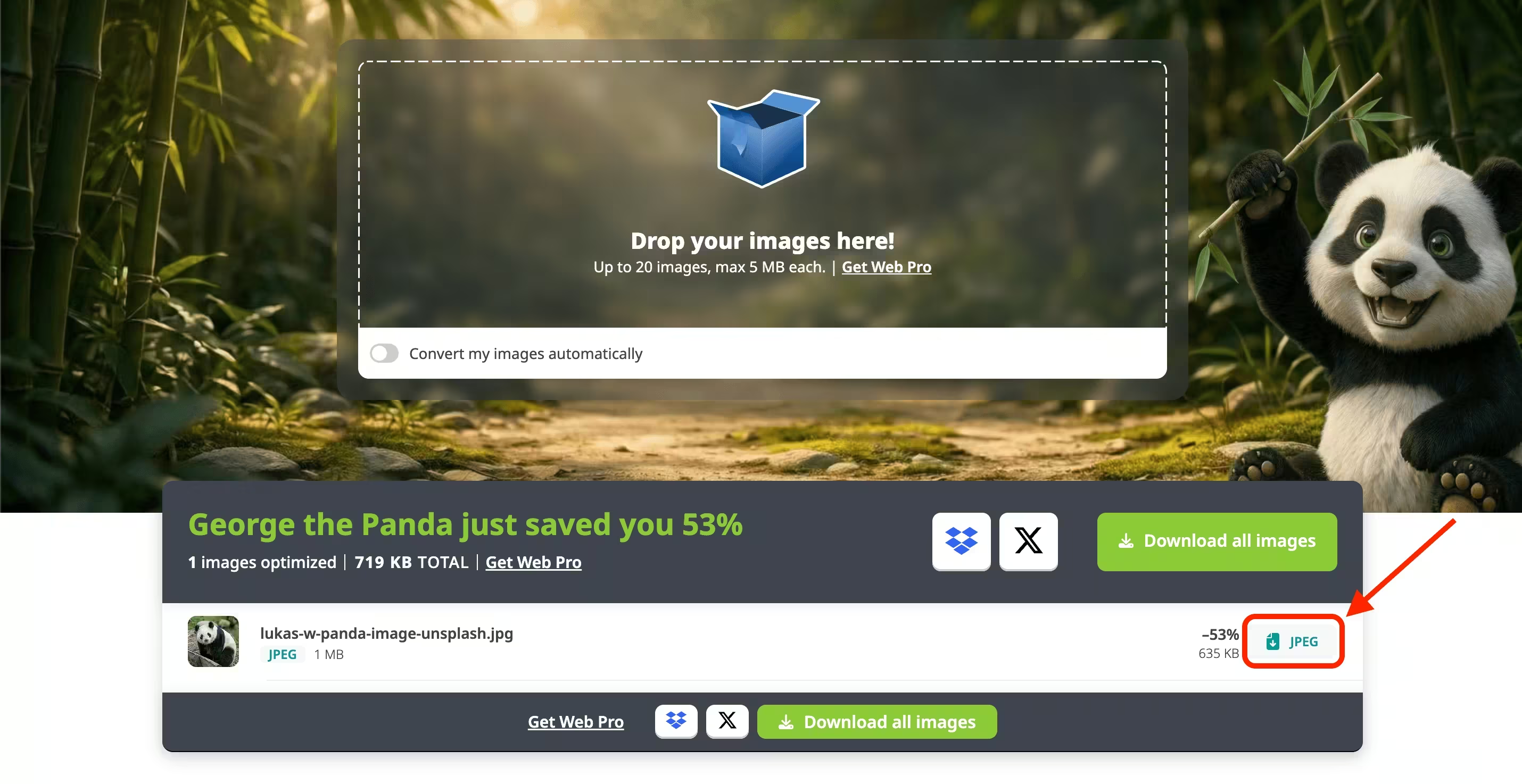
03. Open the downloaded file on your device to check the result.
Results depend on the image itself. On average, JPEG files shrink by 40-60% and PNG files by 50-80%, with no visible drop in quality. A photo that's already been optimized might only trim a few percent off the file size, while a screenshot or a graphic with large flat-color areas can shrink dramatically, since there's more redundant data for the tool to strip out.
See the difference yourself
Drop in an image and watch the file size shrink.
How to convert images to a different format?
Converting works from the same upload box, with one extra step before you drop your files in:
01. Turn on the "Convert my images automatically" toggle below the upload box.
02. Select the format (or formats) you want. Options are AVIF, JXL, WebP, JPEG, and PNG. If you just want the smallest possible file and don't care which format you end up with, choose "Select all" to convert to all five at once. The result will tell you which one is the smallest.
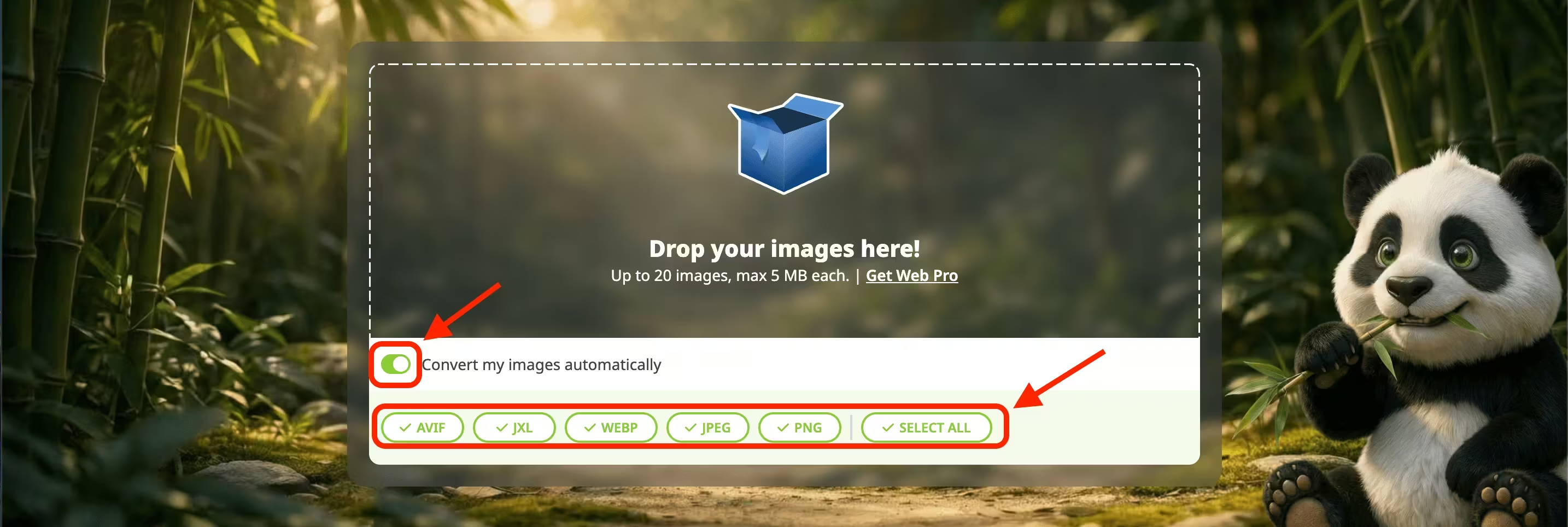
03. Drop your images into the box, or click to select them from your device.
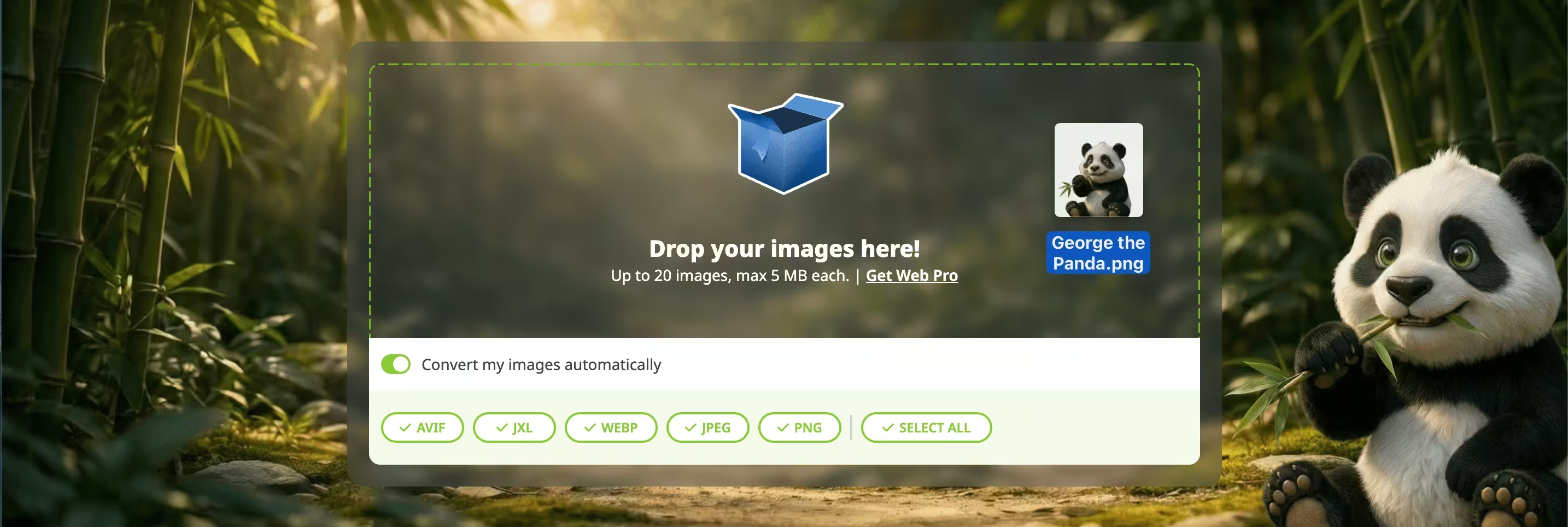
04. Download your images. If you picked a single format, click the format button next to each image. If you picked several, Tinify marks whichever result came out smallest with a green checkmark, so you can see at a glance which format won for that particular image. Use "Download all images" to grab everything at once.
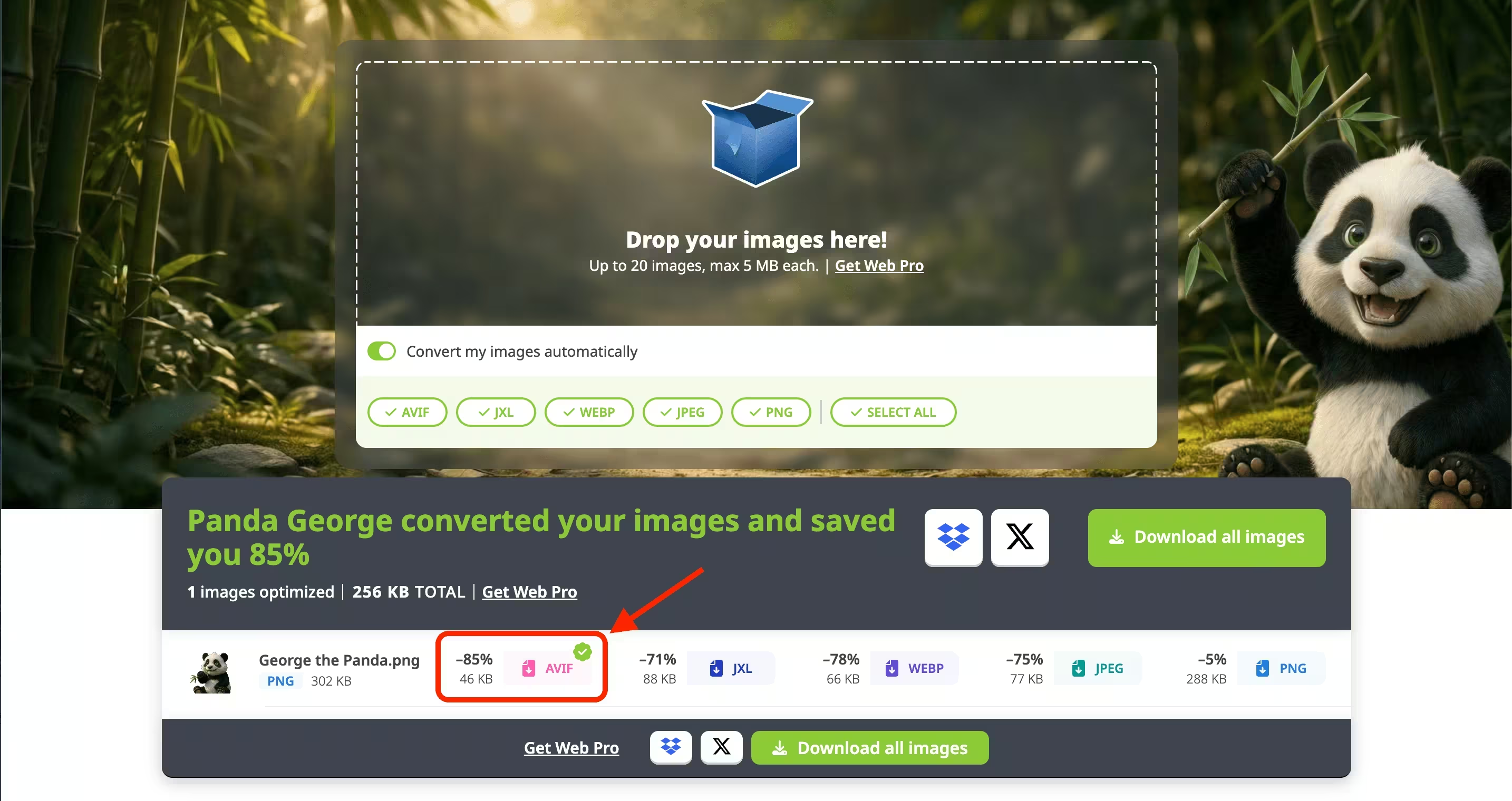
In this example, the image converter converted a 302 KB PNG to AVIF, bringing the file down to 46 KB, an 85% reduction, with no visible loss in quality. That's a bigger jump than compression alone typically achieves, because you're changing the underlying format as well as optimizing it.
Compare PNG (left) to the Tinify-converted AVIF (right). Can you see the difference?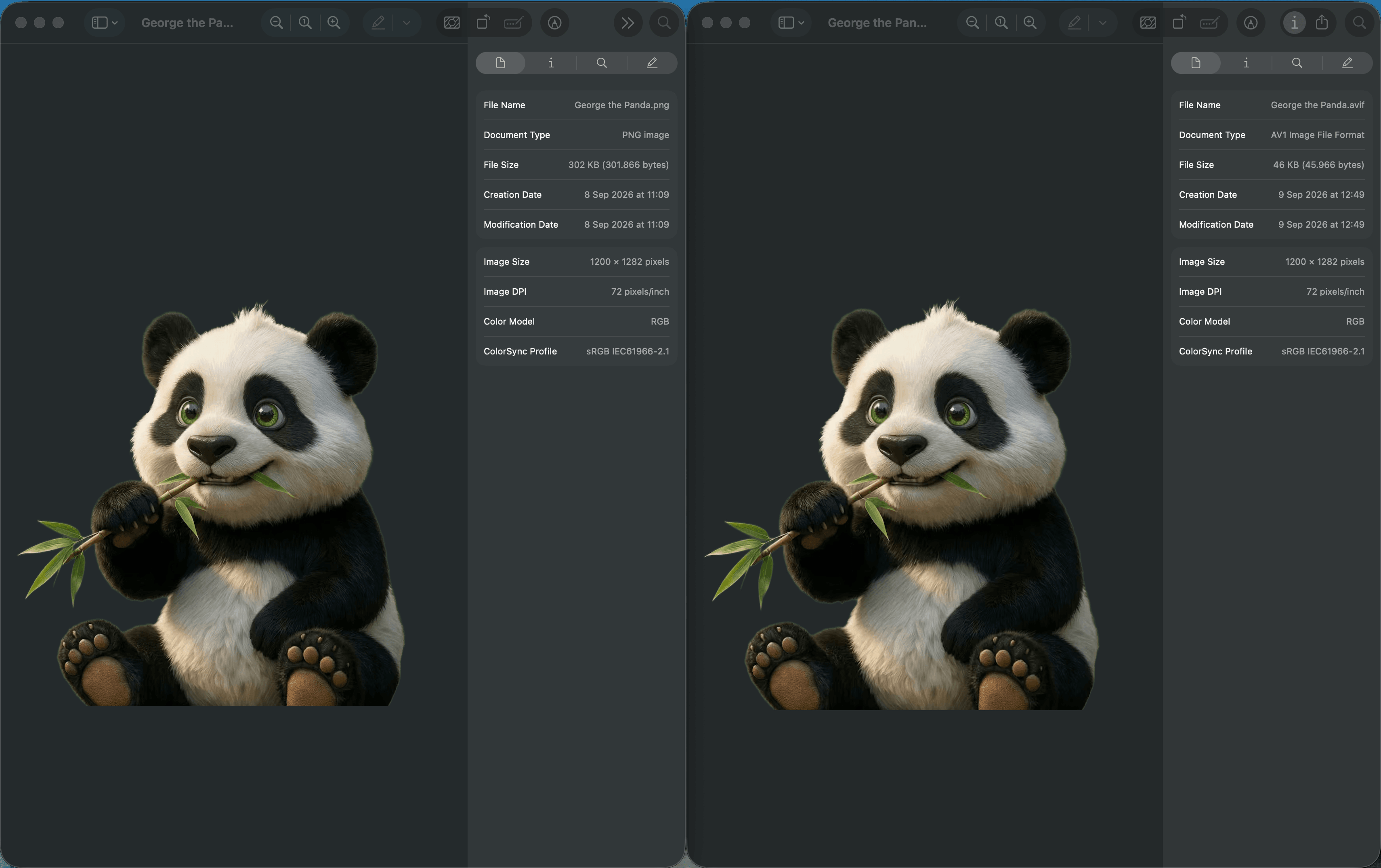
Try a different format
Convert an image to AVIF or WebP files and see the file size difference.
Compress and convert in one step
Notice how the image compression and conversion happen on the same page, with the same tool? This is because any image you choose to convert will also be compressed in one seamless operation. With Tinify’s smart image optimization tool, you will never have to compress first and then run a separate conversion step later.
This is the fastest route if you're prepping a batch of product photos, blog images, or app assets and want them all in one modern format at the smallest possible size.
Do you upload your images on WordPress? We offer the same smart image compression and conversion with our WordPress plugin, Figma plugin, and other third-party integrations.
Choosing the right format for the job
A few terms before we dive in:
Lossy compression reduces file size by permanently removing some image data.
Lossless compression reduces file size by removing unnecessary metadata such as timestamps and geolocation.
Encoding and decoding
Encoding turns an image into a specific file format, such as WebP or AVIF, often compressing it in the process.
Decoding is what happens when a browser or app opens that file and turns it back into an image you can see.
Now that you've learned a bit more about image compression, here’s a comparison:
| Format | Pros | Cons | Best for |
|---|---|---|---|
| WebP | • Supported by about 97% of browsers worldwide. • Lossy WebP files run 25-34% smaller than JPEG at equal quality, and lossless WebP is about 26% smaller than PNG. • Handles both lossy and lossless compression, plus transparency and animation. | • Heavy compression can cause visible artifacts on detailed images. • Not built for print, and some email clients (like Outlook) and design tools (like Figma) do not support it natively. | General website images and blog graphics, where you want strong compression with near-universal browser support. |
| AVIF | • Supported by about 95% of browsers worldwide. • Typically 30-50% smaller than JPEG at equal visual quality, often beating WebP too. • Supports HDR, wide color gamut, and transparency. • Newer browsers can open AVIF images about as fast as JPEG. | • Much slower to encode than JPEG, which matters for large batch jobs. • Weak at lossless compression, barely better than PNG. • No progressive rendering, so images load all at once instead of gradually. | Performance-critical, photo-heavy pages, like hero images and product photography, for modern-browser audiences. |
| JPEG XL (JXL) | • The strongest lossless compression of the group, beating both AVIF and PNG. • Can losslessly recompress existing JPEGs to about 20% smaller while staying reversible to the original file. • Strong on illustrations, logos, and flat graphics. • Encodes faster than AVIF and supports progressive loading. | • Very limited browser support, around 15% globally, with only Safari offering partial support today. • Chrome and Firefox do not support it by default yet, though both have signaled plans to bring it back. • No native support in WordPress or other major CMS platforms yet. | Recompressing existing JPEG libraries to save space, non-photographic graphics, or Safari-heavy audiences. Not yet a safe primary format for a broad public site. |
| PNG | • Truly lossless, with no compression artifacts. • Supported everywhere: every browser, email client, and design tool. • Supports transparency. Best choice for sharp edges, text, and flat colors. | • Much larger files than JPEG, WebP, or AVIF for photos, since it is not built for continuous-tone images. • No animation support on its own (use APNG, GIF, or WebP instead). | Screenshots, logos, icons, and any image needing transparency or text, where exact pixel accuracy matters more than file size. |
| JPEG (JPG) | • Universal support across every browser, email client, printer, and image editor. • Quick to create and open. • A long-established, well-documented format with consistent behavior across tools and libraries. | • Lossy only, no transparency or animation. • Visible blocky artifacts and ringing at low quality or on flat colors and gradients. • Larger files than WebP or AVIF at equal quality. | Maximum compatibility: email attachments, print, legacy systems, or anywhere you cannot guarantee support for newer formats. |
TIP: If you’re just looking for the smallest file size to save space, converting with "Select all" and Tinify will compare the file sizes side by side to help you find out which format works best for a specific image.
Why should I compress my images?
Smaller, better-formatted images load faster, and load time affects more than just how patient a visitor is willing to be. Page speed is a factor in Google's Core Web Vitals (a set of metrics Google uses to measure how fast and stable a page feels to load), which feeds into search rankings (affects your SEO), and unoptimized images are one of the most common causes of a poor score. You can check where your own pages stand with the free page image analyzer, which shows how much load time you could save by compressing your images.
Check your page speed
See how much time you could save by optimizing your images.
A quick example
Say you're prepping ten product photos for an online store. Each one arrives as a 2-3 MB PNG straight from a camera or design tool. Dropping all ten into tinypng.com with the AVIF conversion toggle on gets you compressed, web-ready files in one go, often at a fraction of the original size. The same applies to a batch of blog screenshots, app icons, or marketing banners: one upload, one download, and the files are ready to publish.
There's no single best format for every situation, which is why the tool lets you convert to more than one at once and compare. If you're optimizing a handful of images by hand, that side-by-side comparison comes in handy. With the Web Ultra subscription, you could even download the best results with just one click.
If you're processing hundreds of images a week for your website, consider the Tinify API or the WordPress plugin. These solutions allow you to upload your original photos directly on your website, and Tinify will automatically optimize your assets. This will not only save you bandwidth, but also saves you time.
The next time you're about to upload an image straight from your camera roll or a design export, run it through compression and conversion first. It's a small habit that adds up to a noticeably faster site.
Frequently Asked Questions
01. Does compressing an image reduce its quality?
Tinify uses smart lossy compression, which removes data your eye can't detect rather than lowering resolution or introducing visible artifacts.
02. How many images can I compress or convert for free?
The free web tool lets you upload up to 20 images at once, up to 5 MB each. Format conversion is free for up to 3 images at a time; for larger batches, Web Pro or Web Ultra remove that limit.
03. Can I convert an image to more than one format at once?
Yes. Select multiple formats before dropping in your images, and Tinify converts to all of them. A green checkmark marks whichever format produced the smallest file for that particular image, so you don't have to compare file sizes manually.
04. What happens to the images I upload?
Tinify stores uploaded images for up to 48 hours, then permanently deletes them.