


How to convert AVIF to JPG online: A 2026 Guide

You download an image and it lands in your folder as a .avif file. Your design software won’t open it, your CMS rejects the upload, or a client asks for a JPG instead. AVIF is a newer image format, and plenty of tools, apps, and platforms still don’t support it. Converting it to JPG takes a few seconds once you know where to do it.
What is an AVIF file?
AVIF (AV1 Image File Format) is an image format built on the AV1 video codec, first released in 2019. It compresses images significantly smaller than JPEG or PNG at a similar visual quality, which is why more websites use it to speed up page loads. AVIF also supports both lossy and lossless compression, which allows more flexibility in how the images can be compressed.
The tradeoff is compatibility. Modern browsers like Chrome, Firefox, and Safari display AVIF images fine, but plenty of design tools, older devices, and some social platforms still expect a JPG or PNG. If you need to edit, print, or upload an image somewhere that doesn’t recognize AVIF, converting it to JPG/JPEG solves the problem immediately.
JPG vs JPEG?
JPG and JPEG are the same format. The difference is just the file extension. Early versions of Windows only supported three-character file extensions, therefore “JPEG” got shortened to “JPG.” Mac and Linux systems never had that limit, which is why you will still see both spellings today.
There’s no technical difference between a .jpg and a .jpeg file. Any tool that opens one will open the other.
See the difference yourself
Drop in an AVIF file and watch it convert to JPG in seconds.
Convert AVIF to JPEG with Tinify image converter
Tinify’s online image converter handles AVIF to JPG conversion directly in your browser, no software installation required. The same tool also works if you want to convert an image to JPG from other Tinify-supported formats such as PNG and WebP. In 2026 so far, Tinify users have compressed and converted over 16 million images to JPG.
Here’s how it works:
Go to tinypng.com
Click to turn on the toggle “Convert my images automatically”
Choose JPEG as your output format.
Drag your AVIF file into the upload area (or select your files manually by clicking the upload box)
Download the converted file.
Convert your AVIF file to JPG with Tinify in just a few simple steps. 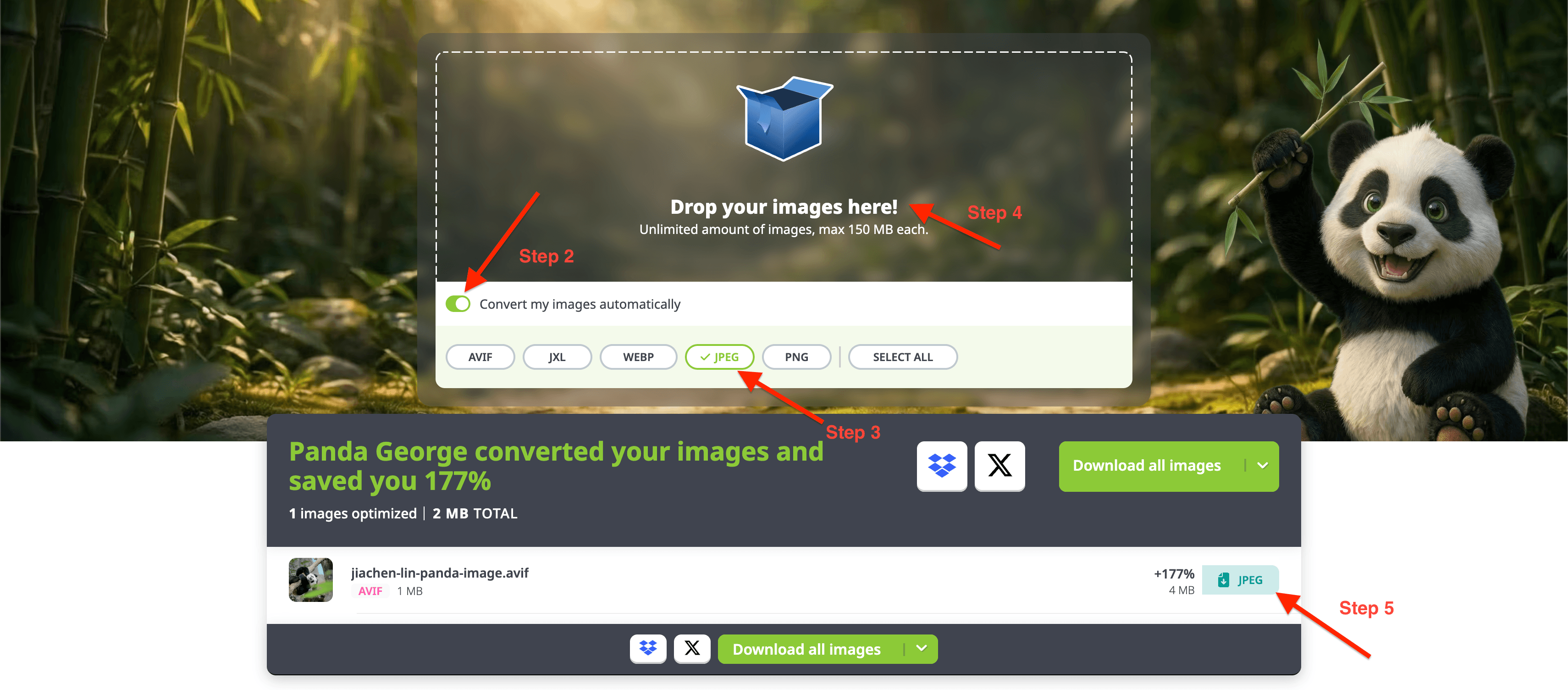
Conversion is free for up to 3 images at a time. If you’re converting AVIF files in bulk, Web Ultra removes that limit.
One thing worth noting is that it also works the other way, converting JPG to AVIF is also possible and tends to produce noticeably smaller files for the same visual quality, which is useful if you're optimizing images when there’s no compatibility limitations.
If you are managing your assets on another platform, the Tinify developer API lets you automate the whole process.
Check out our WordPress, Figma, Make, or other community integrations.
The takeaway
If a tool or platform won’t accept your AVIF file, converting to JPG is the fastest fix, and it takes less time than tracking down software that supports the newer format.
Frequently asked questions
01. Does converting AVIF to JPG reduce image quality?
Tinify’s smart compression technology automatically detects and picks the best compression level for each image so the difference is rarely visible.
02. Can I convert multiple AVIF files to JPG at once?
The free web tool converts up to 3 images at a time. For larger batches, Web Ultra removes that limit. The developer API can convert files automatically as a part of your existing workflow.
03. What’s the difference between AVIF and WebP?
Both are modern formats designed to replace JPEG and PNG with smaller file sizes. AVIF generally compresses slightly better, but WebP currently has broader support across older browsers and tools. Tinify supports converting both AVIF and WebP to and from other formats, including JPEG, PNG, and JPEG XL.
04. Why doesn’t my computer open AVIF files by default?
Support depends on your operating system and its version. Recent versions of Windows, macOS, and most browsers can display AVIF files, but older systems and many desktop image editors still can’t open them without a converter or a plugin.
05. Is Tinify’s AVIF to JPG converter free to use?
Yes. Converting up to 3 images at a time is free on tinypng.com, with no sign up required. Tinify’s Web Ultra subscription removes that limitation and increases the conversion speed.