
What is an SVG file? The complete 2026 guide
An SVG file looks sharp at any size, from a tiny app icon to a billboard. That makes it the go-to format for logos, icons, and illustrations. It also behaves differently from the photos and screenshots you’re used to, which can catch you out when you try to upload or share one.
At Tinify, we compress over 40 million images every year, so we've seen first-hand what makes a graphic feel sharp and fast on the web. This guide covers what an SVG file is, what it’s good for, and how it compares to PNG. You’ll also learn how to open and edit SVG files, and how to compress and convert them with Tinify.
What is an SVG file?
An SVG file (Scalable Vector Graphics) stores an image as a set of instructions instead of pixels. It describes shapes, lines, curves, and colors in plain text code. Your browser reads that code and draws the image fresh every time it loads.
That’s why an SVG logo looks just as crisp on a photo as it does on a large monitor. There are no pixels to stretch, so the image never gets blurry or blocky when you scale it up.
Raster vs. vector explained: A vector image (SVG) is a recipe for drawing a picture, while a raster image (PNG, JPEG, WebP, AVIF) is the finished picture made of a fixed grid of pixels.
What SVG code looks like
Because an SVG is text, you can open one in any text editor. Here’s a complete Christmas SVG file that draws a simple tree:
<svg xmlns="http://www.w3.org/2000/svg" width="100" height="120">
  <polygon points="50,10 85,90 15,90" fill="green" />
  <rect x="43" y="90" width="14" height="20" fill="brown" />
  <circle cx="50" cy="10" r="6" fill="gold" />
</svg>
That’s five lines of code: a green triangle for the tree, a brown rectangle for the trunk, and a code circle on top. Change fill=”green” to fill=”blue” and the tree turns blue. Real logos and illustrations contain many more shapes, but the idea is the same.
Christmas SVG created with the code above.
What are SVG files used for?
SVG works best for graphics built from clean shapes and flat colors. Common uses include:
Logos and brand marks that appear at many different sizes
Icons in website and apps
Illustrations built from flat colors and clean shapes
Cut files for craft machines, like vinyl cutters, where free SVG* designs are popular for cards, decorations, and gifts
SVG isn’t a good fit for photos. A photo has millions of subtle color changes that vector shapes can’t describe efficiently. For photos, a raster format like JPEG, PNG, WebP, or AVIF gives you a much smaller file.
*Note: “Free SVG designs” doesn’t always mean free for any use. Many are licensed for personal use only, so check the license before you use a design commercially.
How to open and edit an SVG file
You probably already have something that can open an SVG file. Which tool you pick depends on whether you want to view it, edit the design, or edit the code.
| What you want to do | Tool to use |
|---|---|
| View the image | Any modern web browser: drag the file into a browser window |
| Edit the design | Figma (free) or a vector editor |
| Edit the code | Any text or code editor |
For design changes, Figma turns an SVG into editable shapes, so you can change colors, move elements, or resize the artboard. For quick code tweaks, like swapping a color value, a text editor is all you need.
SVG vs PNG: When to use each?
Keep your SVG on your own website wherever you can. It scales perfectly and is often tiny for simple graphics. Use PNG when the place you’re sending the image doesn’t support SVG.
Here’s an overview of the differences between SVG and PNG:
| Format | SVG | PNG |
|---|---|---|
| Image type | Vector (code) | Raster (pixels) |
| Scales without blur | Yes | No, fixed dimensions |
| Transparent background | Yes | Yes |
| Best for | Logos, icons, flat illustrations | Screenshots, graphics with text, images for sharing |
| Modern browsers | Widely supported | Widely supported |
| Social media uploads | Usually not accepted | Accepted almost everywhere |
| Email newsletters | Unreliable in many email clients | Widely supported |
| Documents and slides | Limited support | Widely supported |
The big limitation of SVG is support outside the browser. Most social platforms only accept raster formats. Many email clients won’t display SVG, so a logo can show up as a broken image. In those cases, convert SVG to PNG with Tinify’s Figma plugin.
Convert SVG to PNG with Tinify’s Figma plugin
Tinify’s Figma plugin goes beyond PNG. You can convert SVG files to PNG, JPEG, WebP or AVIF without leaving Figma. The steps are simple:
01. Install the Tinify plugin from the Figma community
02. Drag your SVG file onto the Figma canvas
03. Select the frame and open the Tinify plugin
05. Choose your output format (PNG, JPEG, WebP, or AVIF) and scale options (up to 4x resolutions)
05. Export your file
Try Tinify for Figma
Convert and export your SVG to PNG, JPEG, WebP, or AVIF right inside Figma.
The plugin also optimizes each export, so your files are ready to publish. Export at 2x or higher for the display size so the image stays sharp on high-density screens.
Follow the video instructions to use Tinify’s Figma plugin as an SVG to PNG converter.
Which format should you pick?
| Format | Transparency | Best for |
|---|---|---|
| SVG | Yes | Logos, icons, and illustrations on your own website. |
| PNG | Yes | Social media, email, and documents |
| JPEG | No | Places that need wide compatibility and no transparency |
| WebP | Yes | Graphics on your website, with full support across all modern browsers |
| AVIF | Yes | The smallest files for your website, often 20 to 30% lighter than WebP; browser support is still growing |
All formats work best when compressed with Tinify’s online image compressor.
JPEG fills any transparent areas with a solid color, so stick with SVG, PNG, WebP, or AVIF for logos and icons.
How to compress SVG files online with Tinify
SVG files are small for simple graphics, but they’re often bigger than they need to be. Files exported from design tools can include extra code your browser doesn’t need, like editor metadata and comments. Detailed illustrations with lots of shapes add up quickly too.
Tinfiy’s image compressor shrinks your SVG files so they load faster.
01. Go to tinypng.com
02. Drag and drop your SVG files into the upload area, or click to browse
03. Download and enjoy your smaller SVG files
The compressed SVG (196 B) is 16% smaller than the original file (234 B). 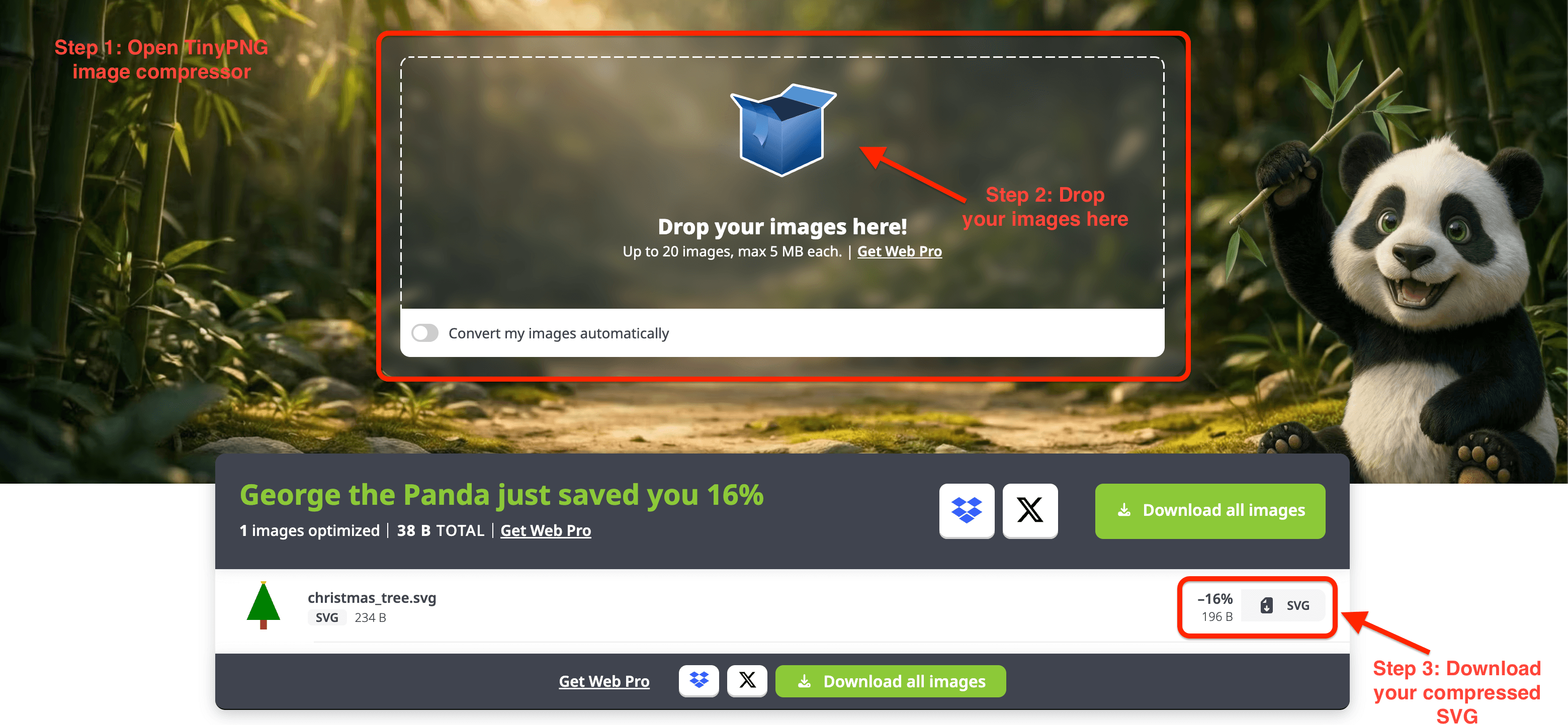
The free web tool handles up to 20 images at once, with a maximum of 5 MB each. For larger batches, Web Pro gives you higher limits.
Compress your SVG files
Drop in your SVG and see how much smaller it gets
Why smaller files matter for page speed and SEO
Smaller images, faster pages
Images are often the heaviest files on a web page. Every extra kilobyte takes time to download, especially on mobile connections. Heavy images delay how fast your page appears and how soon visitors can use it.
Faster pages, better SEO
Page speed also affects search. Google uses Core Web Vitals as part of how it ranks pages. One of these metrics, Largest Contentful Paint (LCP), measures how long the biggest visible element takes to load. That element is often an image, like a hero banner or a logo, and Google considers an LCP of 2.5 seconds or less to be good.
SVGs count towards this score too. Design-tool exports often carry extra code you can strip out without changing how the graphic looks.
Want to see how your current images slow you down? The free Page Analyzer shows how much load time you could save by compressing them.
Keep your SVG files sharp and light
Use SVG for logos, icons, and simple illustrations on your own site, and keep the original file as your master copy. When a platform won’t accept SVG, Tinify’s Figma plugin converts it to PNG, JPEG, WebP, or AVIF at a resolution of your choice. Whichever format you use, compress it before it goes live so your graphics stay sharp without slowing anyone down.
Frequently asked questions
01. Is an SVG file safe to open?
SVG files from trusted sources are safe. Because SVG is code, a file can contain scripts, so be careful with files from unknown websites or email attachments. Opening one in a browser tab is generally safer than running it through unknown software.
02. Is an SVG file smaller than a PNG?
For simple logos and icons, SVG is often smaller. For complex illustrations with lots of detail, a compressed PNG or WebP file can be lighter. It’s worth comparing both if the image is going on your website.
03. Why can’t I upload an SVG to social media?
Most social platforms only accept raster formats like PNG and JPEG. Convert your SVG to PNG with Tinify’s Figma plugin, then upload that version instead.
04. Can I convert SVG to PNG or PNG to SVG with Tinify?
You can convert SVG to PNG with Tinify’s Figma plugin. Bring your SVG into Figma, then use the plugin to export it as a PNG at 2x the display size.
PNG to SVG conversion isn’t supported yet on Figma.
Tinify’s web tool currently only supports SVG compression.
05. Does an SVG file lose quality when you resize it?
No. An SVG is redrawn from code at whatever size it’s displayed, so it stays sharp at any size. Quality only becomes an issue once you export it to a raster format like PNG, which has fixed pixel dimensions.